Creating a backup of your website is one of the most important parts of keeping it secure. It lets you restore the site quickly in case of a failure, a botched update or a hacker attack. In this guide we will show you step by step how to make a full backup of a WordPress website using the free and popular UpdraftPlus plugin.
Table of contents
Step 1: Installing the UpdraftPlus plugin
Log in to the WordPress dashboard as an administrator. Then go to Plugins → Add New. In the search field type: UpdraftPlus.
Once you find the plugin, click Install Now and then Activate.

Step 2: Launching the plugin and opening the settings
After activation, go to Settings → UpdraftPlus Backups. The plugin’s main panel will open, where you can manage backups, automation schedules and data restores.

Step 3: Running a manual backup
If you want to run a backup right away, click Backup Now. In the new window, tick both options:
- Include the files
- Include the database
Then click Backup Now.

Step 4: Setting up automatic backups
To automate backup creation, click the Settings tab. Here you can set:
- How often to back up the files (daily, weekly and so on)
- How often to back up the database
- How many recent backups to keep (2 or 5, for example)
For most websites, a daily or weekly backup is enough.

Step 5: Choosing where backups are stored
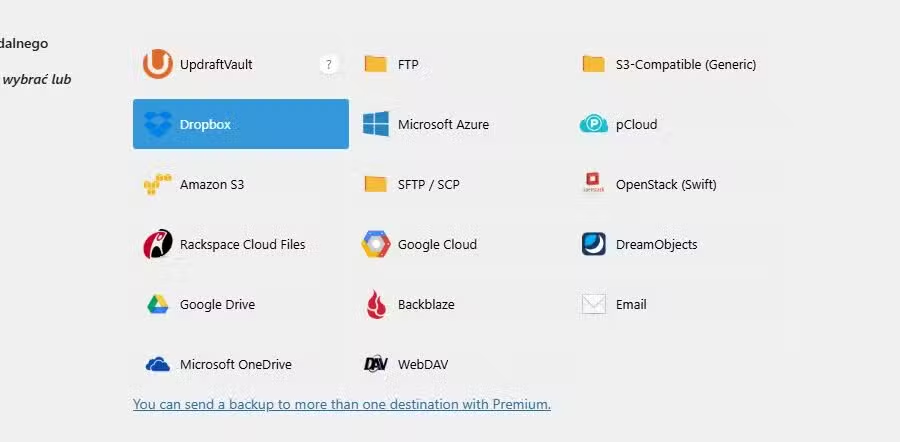
By default UpdraftPlus saves backups on the server, which is not the safest option. That is why it is worth choosing external storage, such as Dropbox, Google Drive, OneDrive, Amazon S3 or FTP.
Pick your preferred storage method and click Save Changes. The plugin will ask you to authorize access to the chosen service (for example to log in to your Dropbox account and approve the connection).

Step 6: Restoring a backup
If you ever need to restore the site from a backup, go to the Backups tab, find the backup you want and click Restore.
Select which elements should be restored:
- Database
- Plugins
- Themes
- Uploaded files (uploads)
- Other files
Click Next and follow the instructions. The restore process takes a few minutes (or longer if the site has a lot of files or the server is slow) and requires confirmation at every stage.

Extra tips
- If you do not use a backup server, download your backups to your own computer regularly.
- Make sure you have access to the WordPress dashboard and to the backup storage location.
- Check from time to time that the automatic backups are actually running.
- Avoid keeping backups only on the same server as your website. Such copies are not a backup.
Summary
UpdraftPlus is an intuitive, free plugin that lets you create backups of a WordPress website quickly and safely. With it you can be sure that even in case of a failure, a bad update or a hacker attack, you will restore a working version of your site in a few clicks. It is a solution that will be especially appreciated by anyone who cares about the stability and continuity of their website.
If you would rather leave such tasks to specialists, get in touch with us and we will take comprehensive care of your website’s security, from configuring automatic backups, through storing them in the cloud, to regular monitoring of how the site performs. There is no point waiting for a failure - secure your website today and keep a clear head, whatever happens.